Disk full at 2 a.m.: a calm, systematic triage
/var hits 100% on a production app server. A repeatable sequence to find the cause, free space safely, and stop it happening again — without deleting the wrong thing.
The scenario
- Situation
- A monitoring alert fires: /var on a production application server is at 100%. The application has started failing to write logs and requests are erroring.
- Environment
- RHEL with LVM and XFS; application logs under /var/log/app; logrotate configured but not for this log.
- Goal
- Restore service in minutes without losing data needed for the post-incident review, then remove the root cause.
- Outcome
- Space recovered from 100% to 16% in under ten minutes; logrotate policy fixed so the alert has not recurred.
Full filesystems are among the most common Linux incidents, and among the easiest to make worse. The instinct is to start deleting. The goal of this runbook is to replace instinct with a short, safe sequence.
The whole triage in 40 seconds
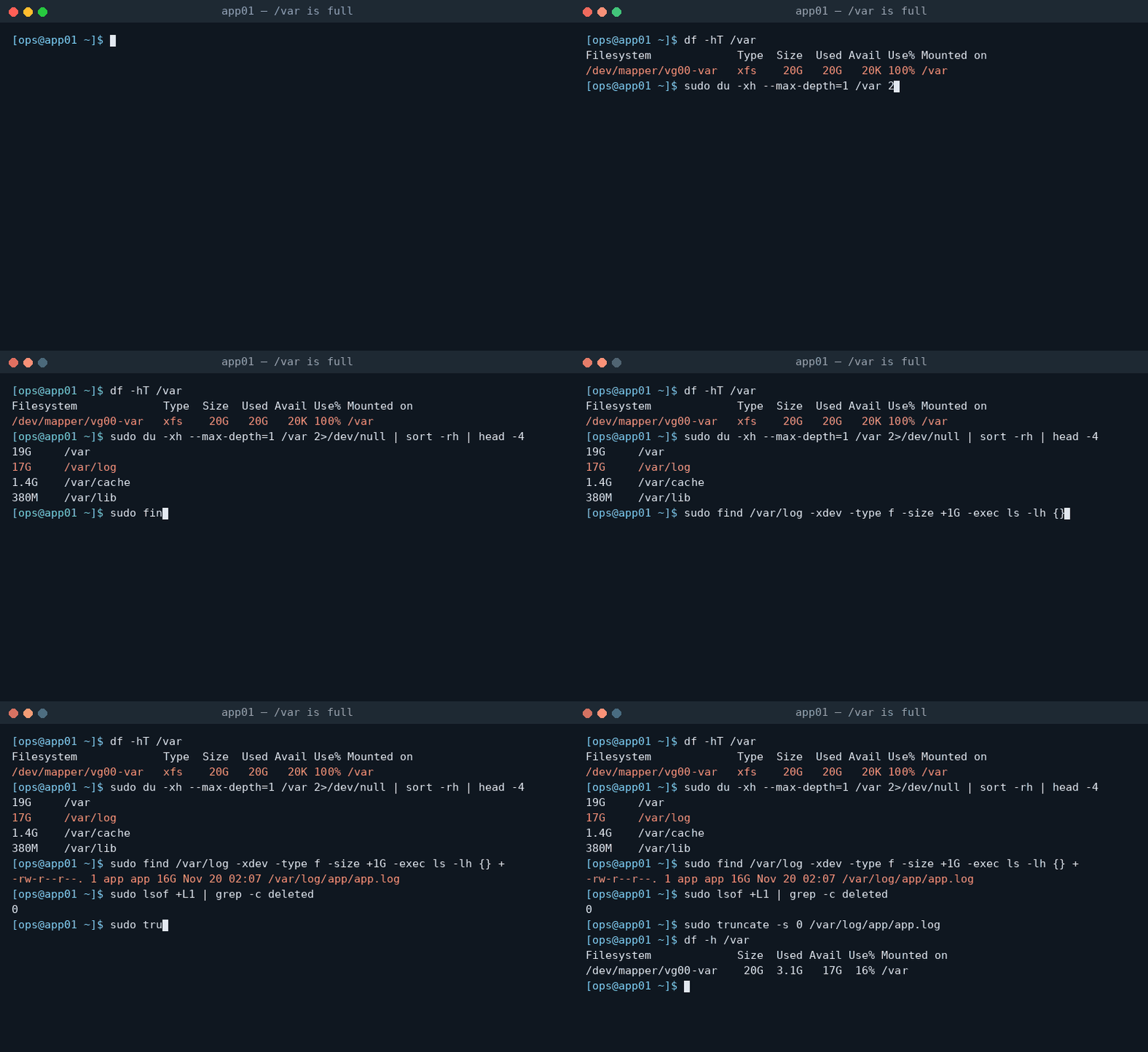
Step 1 — confirm what is actually full
df -hT /var        # space
df -i  /var        # inodes — a filesystem can be "full" with free space left
If IUse% is 100% and space is not, you’re hunting millions of small files (session files, mail queue, cache), not one
big one. That’s a different search: sudo find /var -xdev -type f | cut -d/ -f2-4 | sort | uniq -c | sort -rn | head.
Step 2 — find where the space went
sudo du -xh --max-depth=1 /var 2>/dev/null | sort -rh | head-x keeps du on one filesystem, so a mounted /var/lib/docker or NFS share doesn’t pollute the answer. Drill down one
level at a time until you reach the culprit, then list large files directly:
sudo find /var/log -xdev -type f -size +1G -exec ls -lh {} +Step 3 — check for deleted-but-open files
If df says full but du can’t find the space, a process is probably holding a deleted file open. The space isn’t
released until that file descriptor closes.
sudo lsof +L1 # open files with link count < 1, i.e. deletedThe fix is to restart (or signal) the owning process — or, if you can’t restart it yet, truncate through its
descriptor: : > /proc/<pid>/fd/<fd>.
Step 4 — free space without destroying evidence
Safer options, in order of preference:
- Compress and move the old part if you need it for the post-incident review:
sudo sh -c 'tail -n 50000 app.log > /tmp/app.log.tail'before truncating. - Truncate in place:
sudo truncate -s 0 /var/log/app/app.log— the process keeps its file handle and carries on. - Extend the filesystem if the data is legitimately needed and the volume group has space:
sudo lvextend -r -L +5G /dev/vg00/var(-rgrows XFS online in the same step).
Step 5 — fix the cause, not the symptom
In this scenario the application wrote to a log that wasn’t covered by logrotate. The permanent fix was a policy file:
# /etc/logrotate.d/app
/var/log/app/*.log {
    daily
    rotate 14
    maxsize 1G
    compress
    delaycompress
    missingok
    notifempty
    copytruncate
}
copytruncate is used because this application can’t reopen its log on a signal. If yours can, prefer create plus a
postrotate reload — copytruncate can lose a few lines written during the copy.
Validate before you walk away: sudo logrotate -d /etc/logrotate.d/app (dry run) and then
sudo logrotate -f /etc/logrotate.d/app.
Checklist
- [ ] Space or inodes? (
df -h,df -i) - [ ] Where? (
du -x,find -size) - [ ] Deleted-but-open? (
lsof +L1) - [ ] Free safely (truncate / move / extend — not
rmon open files) - [ ] Root cause fixed and tested (logrotate dry run)
- [ ] Monitor tuned to warn on trend, not just threshold